
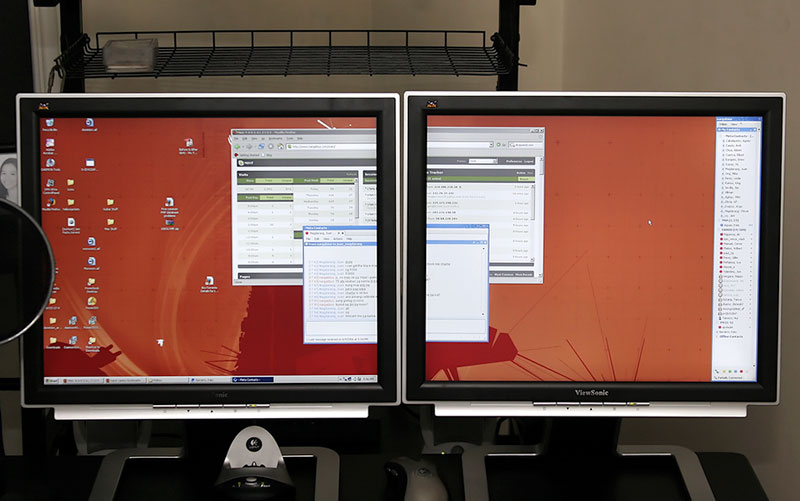
During my quest to have a color calibrated setup of dual displays, I’ve come across a bunch of information that will definitely be useful to any newbie plannning to do the same. Most information could be found in different forums if you search hard enough. But it would be useful to just have everything I’ve discovered written here.
Viewing angles (LCD)
Mostly (if not entirely) applicable to LCDs, once you go dual, viewing angles will be very important. You’ll be making one of two choices: would you like the monitors side-by side aligned on the same axis, or a bit bent (like a V) with each facing you. The latter is very common, but there’s a legitimate reason to want to try the first: graphics alignment. Unless your monitors are perfectly perpendicular to the surface, 1 Normally, your monitor is tilted up a little if you’re seated higher, or down a little if you’re seated lower. doing the latter formation will result in a gap either at the top or bottom of the joint where the two monitors meet. Of course this is a very trivial subject, but this “misalignment could get quite irritating for the more anal people (myself included), which is why I mention it.
This also brings us to another thing you should be wary of: available tilt adjustments of the monitors. If you have full freedom of tiliting up down, sideways then you can always go the second way without compromising your viewing angles. Unfortunately my VX922s, as premium quality as they may be, can only tilt up and down – hence I am constantly battling with the issue of having these gaps at the joint.
A good solution, if you like to try some carpentry, is to make simple shims to put on the bases to adjust whatever tilt direction is lacking in your monitors. Or of course spend more bucks on VESA compliant panel mounts if you could. 2 Of course your monitors have to be VESA compliant to begin with.
Video cards
This can be an issue depending on how you use your computer. If you’re into color, then I guess for color accuracy, you’re better off with two simple video cards with DVI outputs. A dual head DVI video card is preferable if you’re sure you can set different color profiles for each “head/monitor” – I learned the hard way that this isn’t a generalization one can make with dual-headed cards. More on this later
If you’re a gamer, and are on a tight budget, then a single card with dual (but different) outputs would be advisable. A lot of the cards nowadays come with dual-heads, one being a DVI jack, the other is a D-SUB (standard VGA) jack.
Inputs
Based on what was mentioned above, your monitors’ supported inputs will now matter, whatever interface you have for your monitor, make sure you can connect it somewhere in your card(s) and vice-versa. DVI is digital so for color accuracy, it’s always the better choice. Another plus of digital input is that you don’t use refresh rates – ergo staring into an LCD via DVI is less likely to strain you in any way.
The only reason I can think of to use a VGA input (D-SUB) is simply because you don’t have DVI (in your card or monitor) – otherwise it’s better than analog in every concievable way.
Primary Display
Most people (myself included) have the (DVI/D-SUB) combination, and most of the time, the D-SUB is considered as monitor one on first install. Don’t let this mislead you, D-SUB being first listed has nothing to do with it being better than DVI in any way – so find a way to switch that immediately. If you have dual DVI inputs, then any would be fine. But for the rest of us, set the monitor hooked to your DVI as your primary monitor.
Calibration
Here’s an important bit of information I’ve found out after calibrating my monitor: Most dual head cards cannot set separate ICC profiles on individual monitors. There are applications that allow you to set them manually, but as far as I know, there isn’t anything yet that can set them automatically and remember it after a reboot.
With the regular color management utility of windows, sure you can select and individual monitor, you can even select individual refresh rates. Each monitor’s color profile settings show available profiles for use, but try this: select one for one monitor and set that as the default. Go to the second and select another and set as default. Go back to the first… you’ll now see that it only remember the last profile you set as default (which in our case is now the second).
Running the calibration software sets each individual monitor properly (as you have to run it twice with each), but after reboot, they use and load whatever is the default – meaning only ONE profile. Now you see why I stressed the need to have 2 separate video cards – as you have the option to indeed select individual profiles for each.
Another peeve of mine is the requirement to even use these profile loaders… even if you set a generated calibrated profile in windows, when you reboot, for some reason it doesn’t apply it. Maybe it’s just me, but whenever I disable the profile loader in the startup folder, the profiles don’t stick after reboots. This is also applicable for single monitor setups. Unless you have some kind of profile loader there, for some reason it won’t apply profiles properly.
If someone found a way to solve this problem, please feel free to share your solution.
Good LCD Settings to use
Given the problem above, I could now assume that despite having separate ICC profiles for each monitor. Reboots will probably end up loading only one of them. So I obviously chose the monitor connected digitally as the “basis”
A nifty trick I thought of was this: Since the software that profiles and calibrates your monitors ultimately drastically changes the visual settings based on a hardware colorimeter, it means it does all the compensation via software. This means you can set your hardware settings to any [reasonable] value and it will still adjust them properly.
So say you set your monitor totally out of whack color setting (via your LCD’s hardware settings); in theory, the software can still correct your colors while retaining your LCD hardware settings (because it does all the compensation via software).
Therefore, my first valid tip is to ALWAYS set the color preferences hardware setting on the LCD to user mode the names may vary, but look for the part where you can change the color temperature – the goal is to not use the presets. Set your RGB values to have some slack on both sides so you can do + or – adjustments at the end of it all.
Next is to try to match the two monitors with your eyes for now by just using these RGB values. You don’t have to get them exactly, but if you could then why not? When you’re done with that, and assuming you still have enough slack on the secondary monitor, calibrate your primary. 3 In the case of a single video card with dual heads, you can also calibrate the second monitor, but because of the “bug” I mentioned above, it might just be a waste of time.
Now use the newly generated profile as your default profile (I don’t care how you apply it, just make sure it applies to both monitors). Now since you did a best-guess matching to begin with, you should now see the second monitor looking close to the first. Of course theres an almost sure chance that it will still be off a little bit – after all, you are useing a different monitor’s profile for your secondary display), so what you do now is go back to your RGB values (which should have slack for more adjustments) and adjust to taste. 4 And now you know why you HAD to use the custom/user settings and not the presets.
Unfortunately, for the second monitor, we’ll be relying on our eyes now – so you just have to trust your judgement and try matching it with your properly calibrated primary screen.
If all goes well, you should end up with a satisfactorily (is there such a word?) matched set of dual displays 🙂
Notes
| ⇡1 | Normally, your monitor is tilted up a little if you’re seated higher, or down a little if you’re seated lower. |
|---|---|
| ⇡2 | Of course your monitors have to be VESA compliant to begin with. |
| ⇡3 | In the case of a single video card with dual heads, you can also calibrate the second monitor, but because of the “bug” I mentioned above, it might just be a waste of time. |
| ⇡4 | And now you know why you HAD to use the custom/user settings and not the presets. |